

Overview
To connect Zapier with your Timetracker account, you’ll need to authenticate using an API key. This key provides secure access to your account data and allows Zapier to perform actions on your behalf.API keys are the recommended authentication method for server-to-server integrations like Zapier. They’re more secure than username/password authentication and provide better control over access permissions.
Getting Your API Key
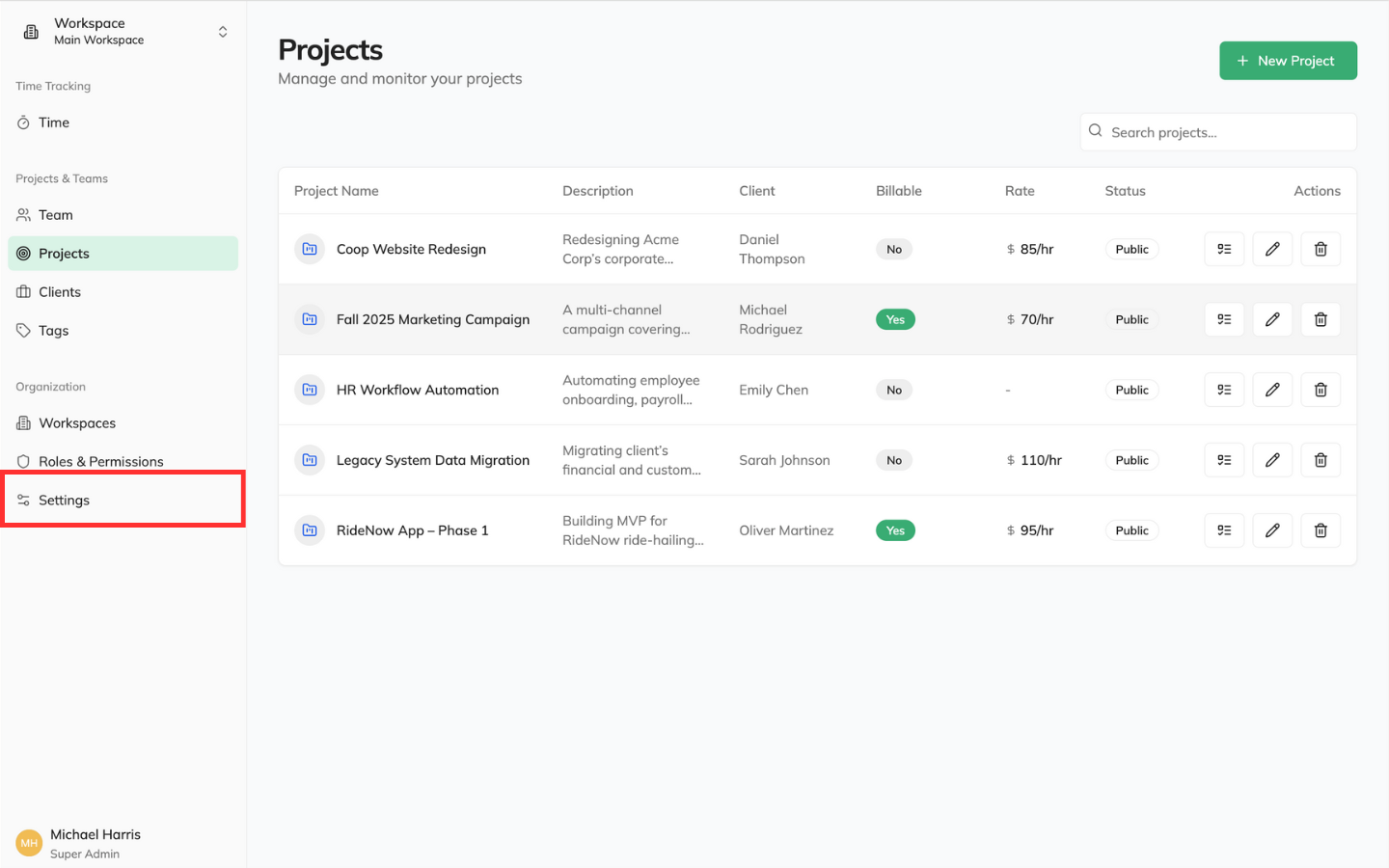
Step 1: Access Your Account Settings
- Log in to your Timetracker account
- Navigate to Settings
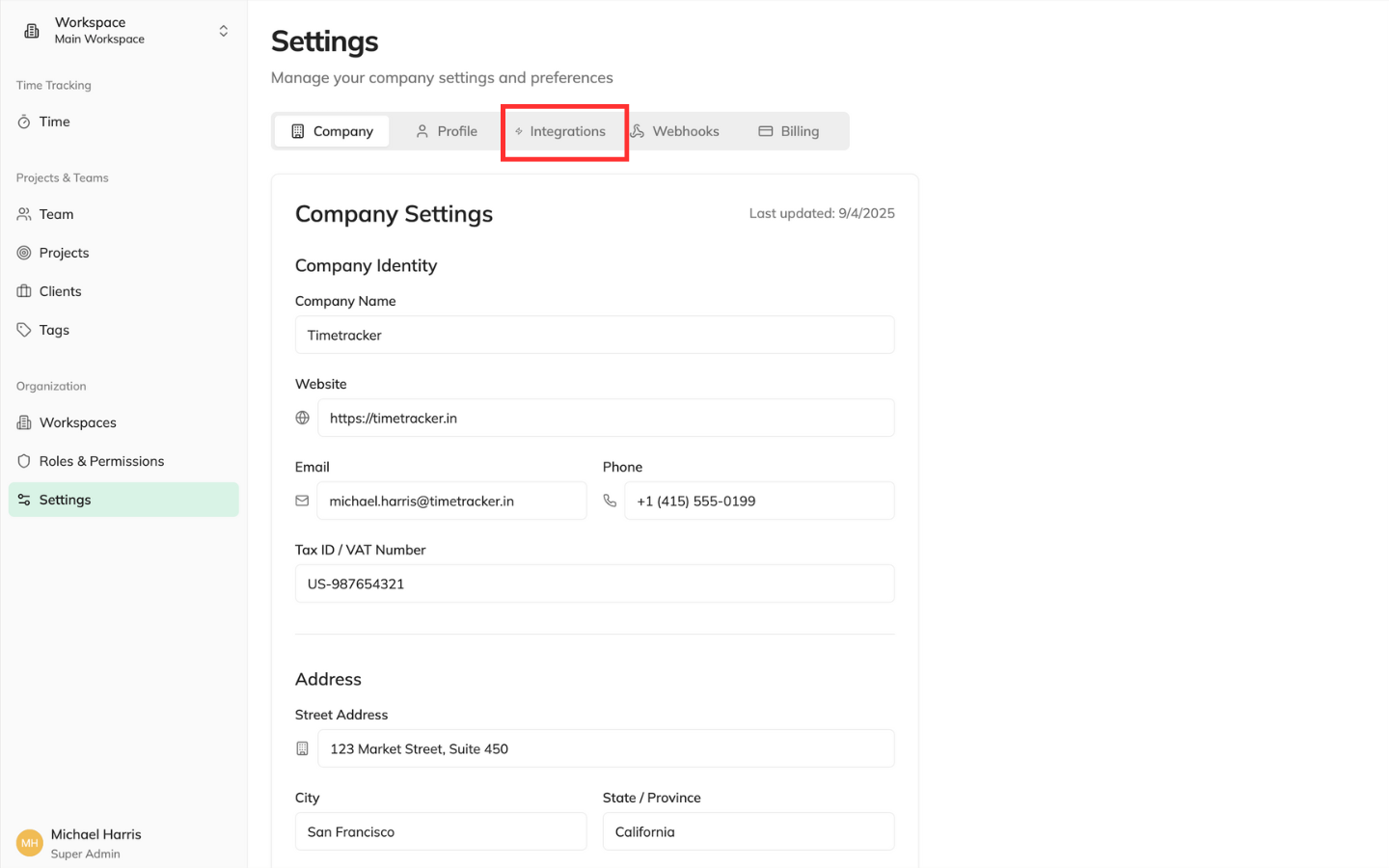
- Click on the Integrations tab
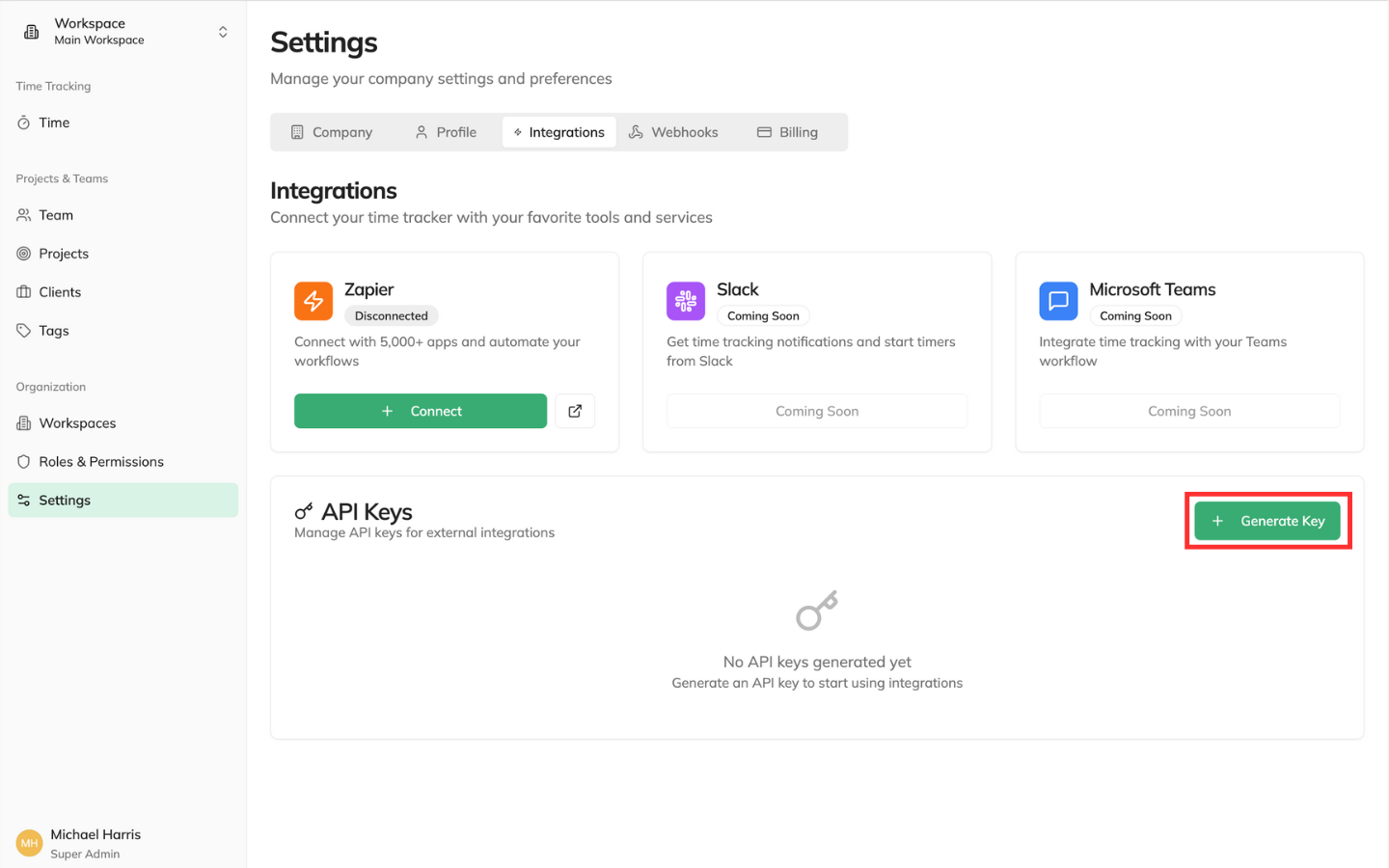
Step 2: Generate a New API Key
- Click Generate Key
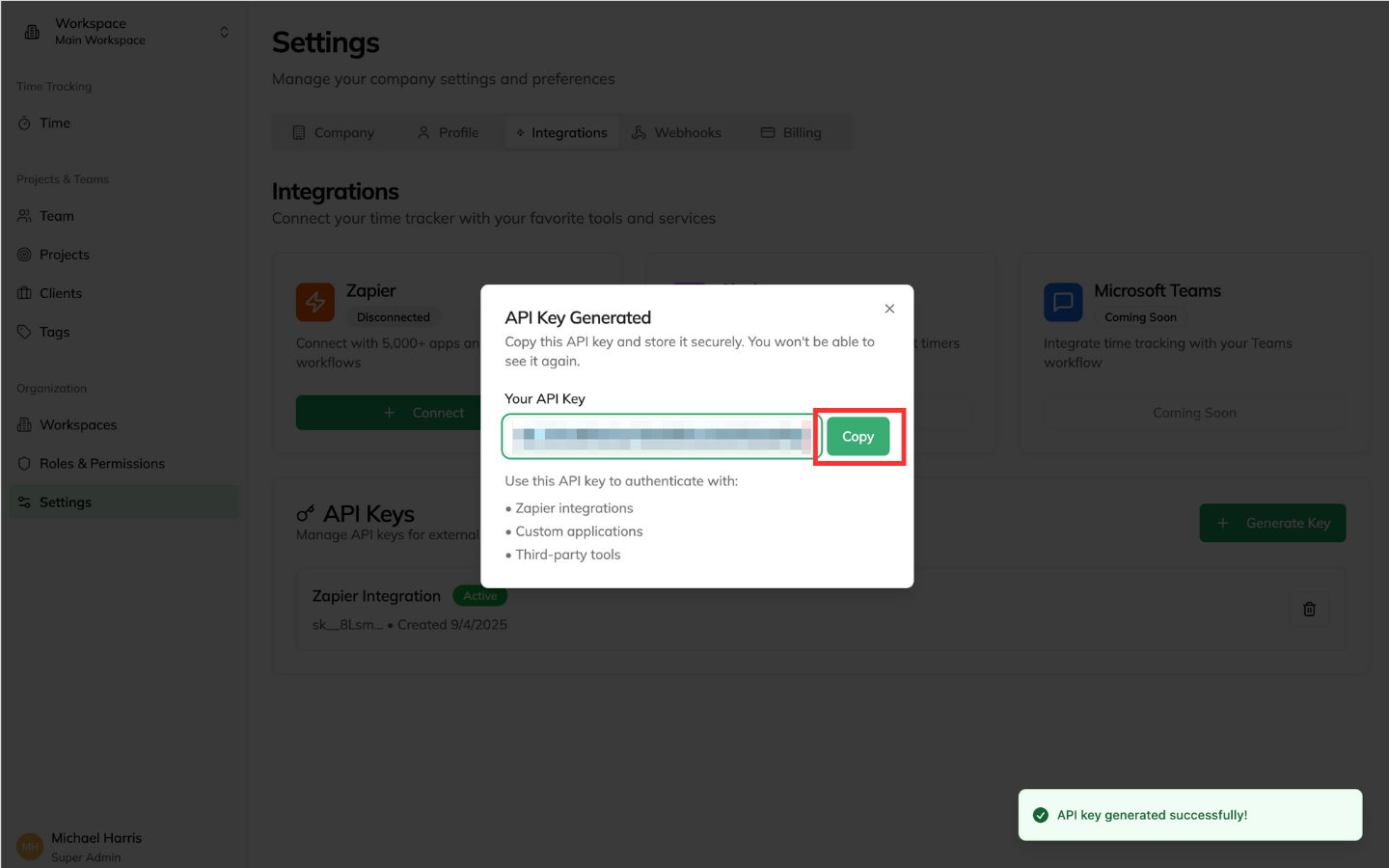
- Click Copy
Step 3: Copy and Store Your Key
- Copy the generated API key immediately
- Store it securely in a password manager or secure note
- The key will only be displayed once for security reasons
If you lose your API key, you can always generate a new one. The old key will be automatically revoked when you create a replacement.
Connecting to Zapier
Step 1: Add Timetracker to Your Zap
- In Zapier, create a new Zap or edit an existing one
- Search for Timetracker in the app directory
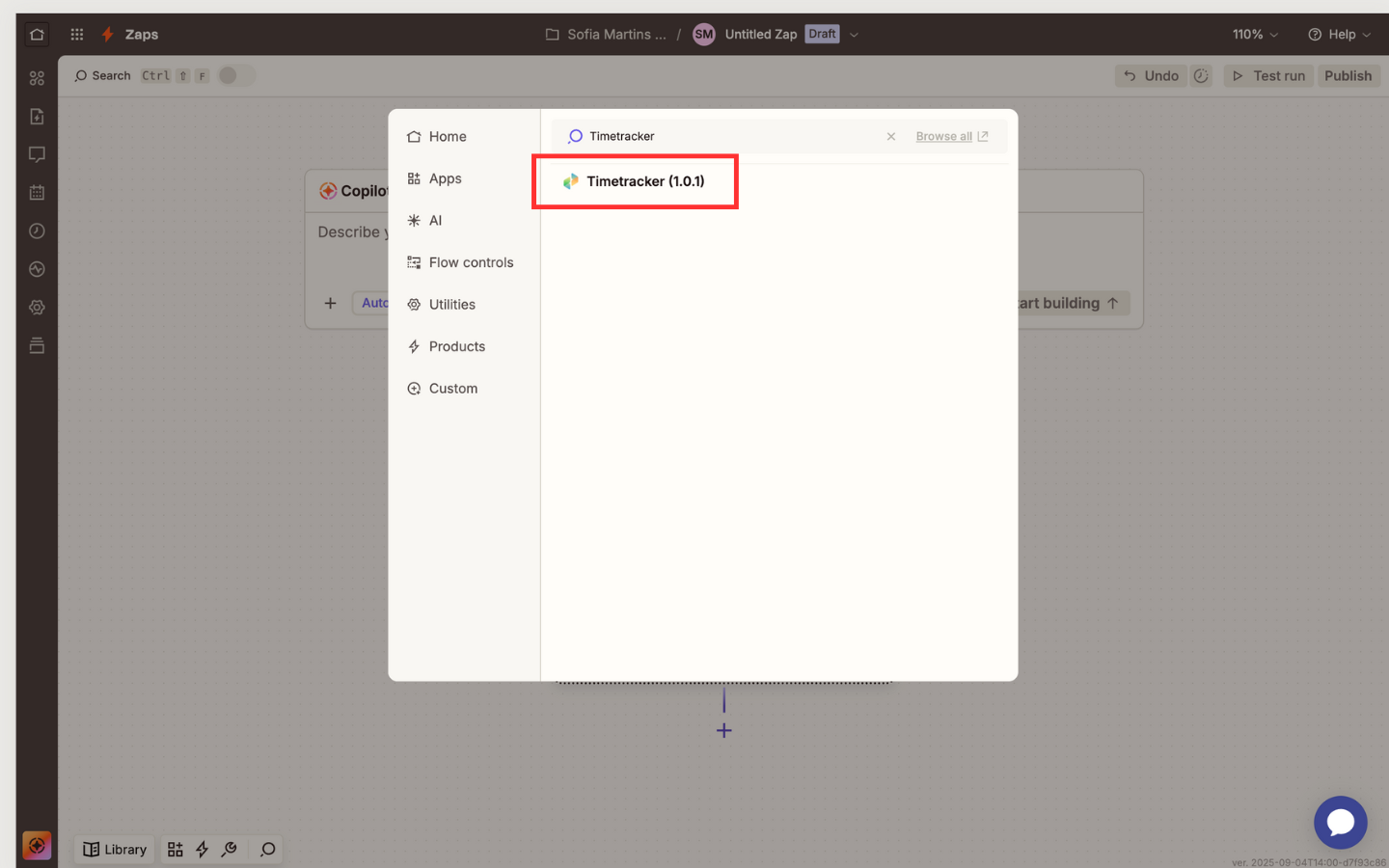
- Select the trigger or action you want to use
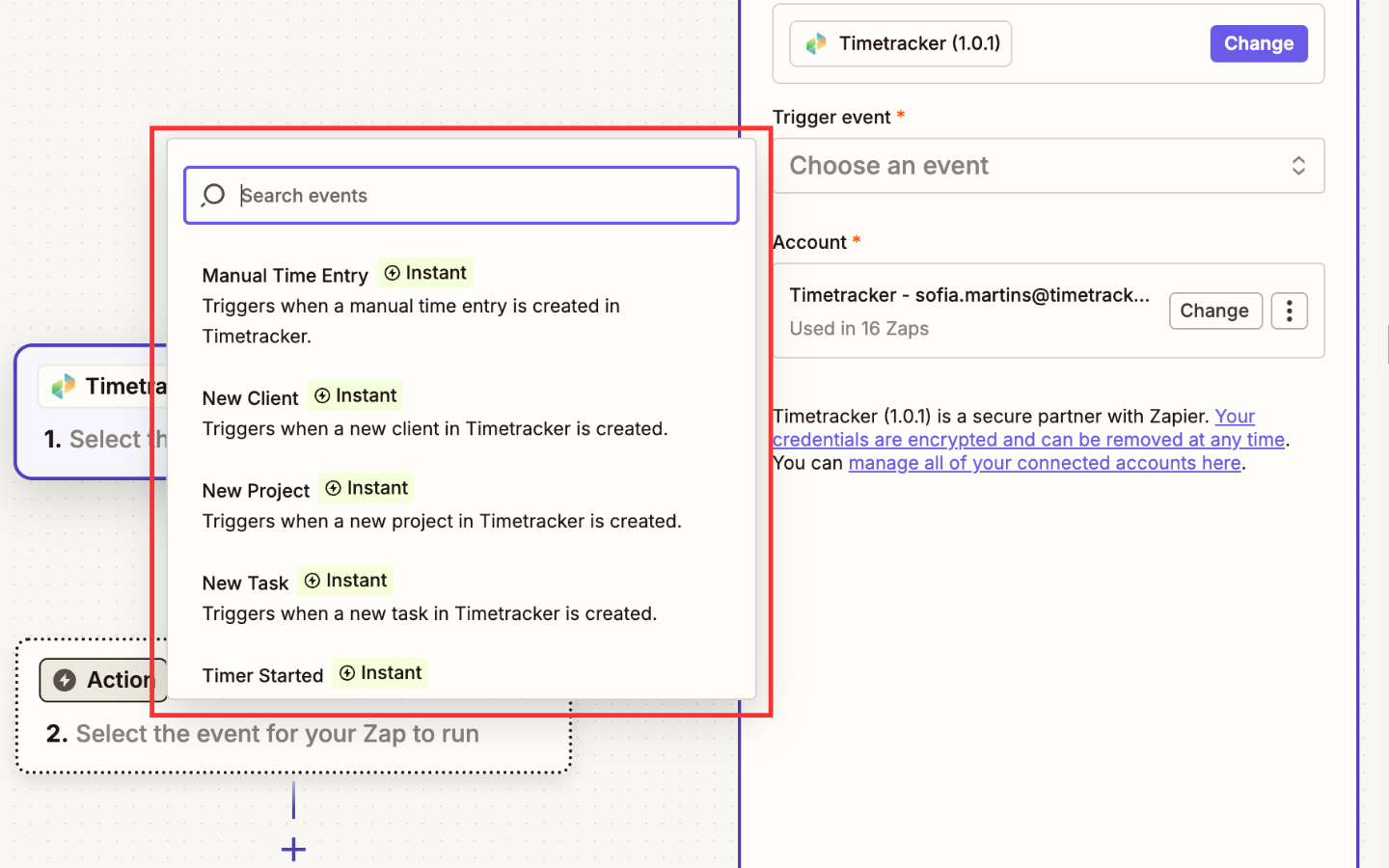
Step 2: Authenticate Your Account
- Click Connect an Account
- Choose API Key as the authentication method
- Enter your API key in the API Key field
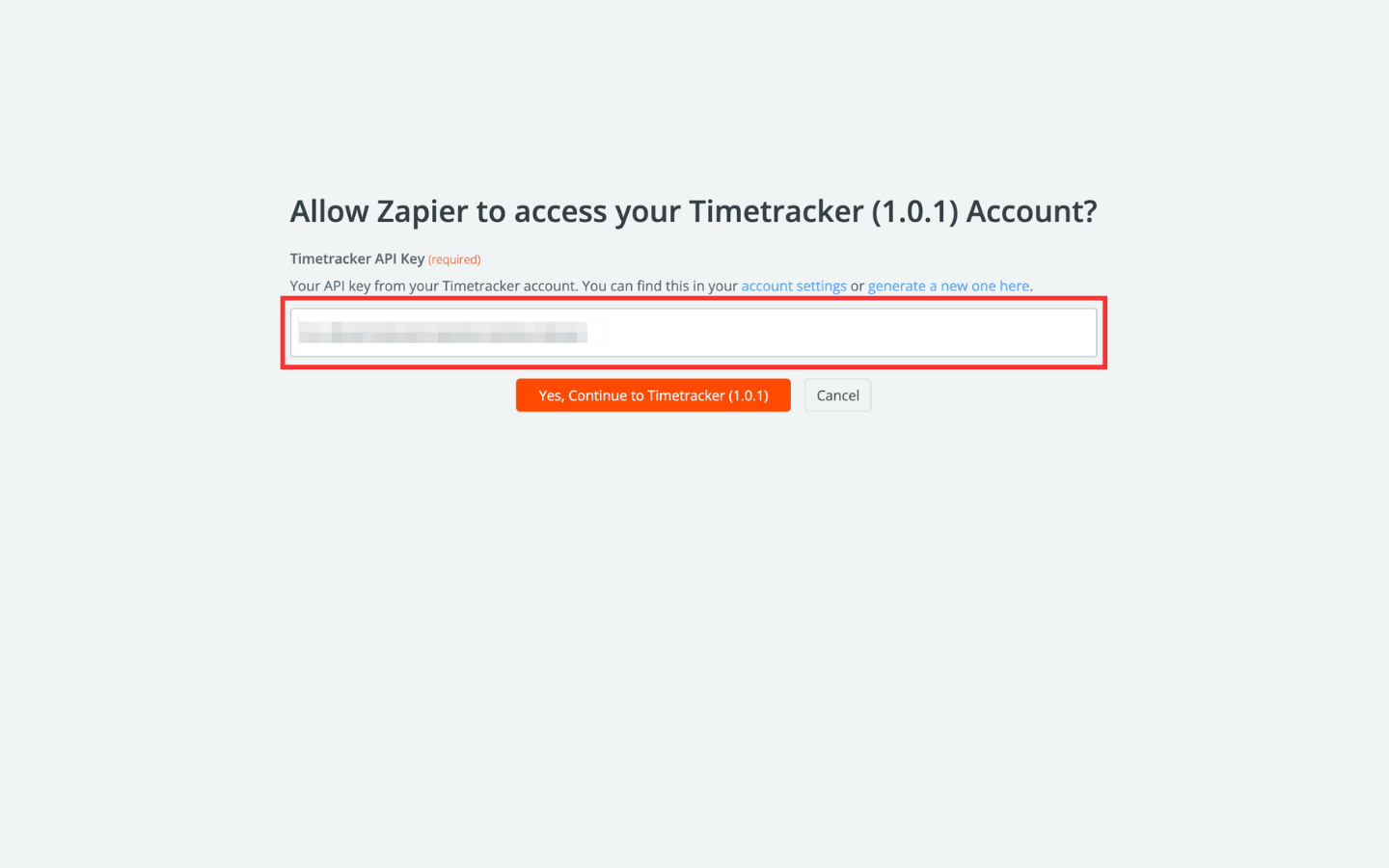
- Click Test Connection to verify authentication
Success: You’ll see a green checkmark and “Connected” status when authentication is successful.
Step 3: Test Your Connection
- Click Test to verify the connection works
- Check that sample data is returned correctly
- Review any error messages if the test fails
Troubleshooting Authentication Issues
Common Problems and Solutions
Invalid API Key Error
Invalid API Key Error
Problem: Zapier shows “Invalid API key” or “Authentication failed”Solutions:
- Verify you copied the entire API key correctly
- Check that the key hasn’t expired or been revoked
- Ensure there are no extra spaces or characters
- Try regenerating a new API key
Connection Timeout
Connection Timeout
Problem: Zapier can’t connect to Timetracker serversSolutions:
- Check your internet connection
- Verify Timetracker service status
- Try again in a few minutes
- Contact support if the issue persists
Security Best Practices
API Key Management
- Store securely: Use a password manager or secure vault
- Rotate regularly: Generate new keys every 90 days
- Monitor usage: Check your API key usage logs regularly
- Revoke unused keys: Delete keys you no longer need
Need Help?
- Contact support at [email protected]